
IP Addresses Explained: How Your Devices Talk to the Internet
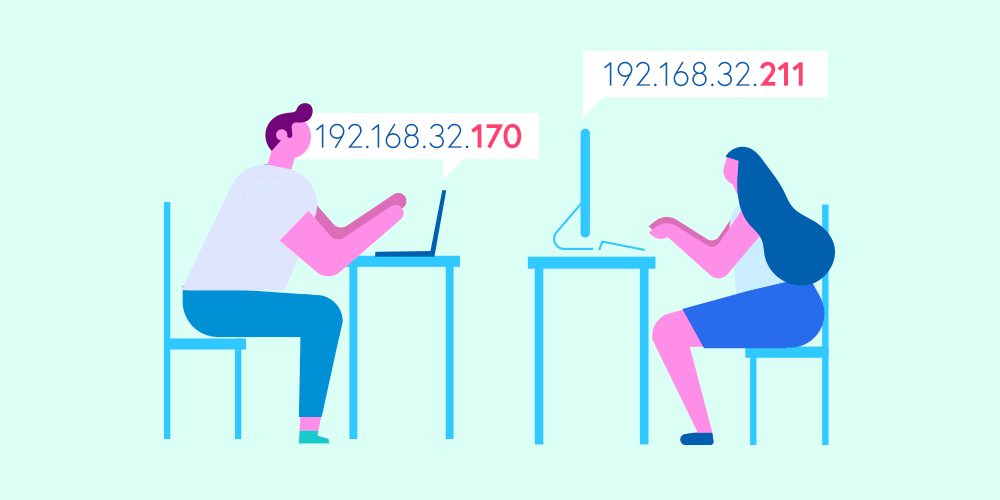
If you’ve ever wondered how the internet actually knows where to send information — whether it’s loading your favorite website, streaming a movie, or sending an email — the answer comes down to something called an IP address.
Think of it like this: every device connected to a network, whether it’s your laptop, phone, or even your smart fridge, needs its own unique identity. Just like how your house has a mailing address so people can send you letters or packages, your device has an IP address so the internet can deliver data to it. Without this system, the internet would be chaos. Your Netflix movie might land on someone else’s laptop, or your emails could be lost in the void.
What Is an IP Address?
An IP address (short for Internet Protocol address) is a string of numbers assigned to every device connected to a network. It’s part of the TCP/IP protocol, which is the universal standard that keeps the internet running smoothly.
There are actually two main versions of IP addresses in use today: IPv4 and IPv6.
IPv4 The Classic Address System
IPv4 (Internet Protocol Version 4) has been around since 1981. This is the most widely used type of IP address and looks like a series of numbers separated by dots, such as:
192.168.1.1It’s made up of 32 bits, which means it allows about 4.3 billion unique addresses. Back in the 80s, that seemed like more than enough. Nobody imagined a world where almost every person would have not just one device, but multiple devices — laptops, tablets, smartphones, smart TVs, watches, and so on.
Today, we’ve pretty much run out of IPv4 addresses. To stretch things further, techniques like NAT (Network Address Translation) are used, where many private devices share one public IP. But the truth is, IPv4 was never built for the scale of our modern, connected world.
IPv6 The Future of the Internet
Enter IPv6, the new standard developed by the Internet Engineering Task Force (IETF) in 1999. Unlike IPv4, which uses 32-bit addresses, IPv6 uses 128-bit addresses. What does that mean?
It means we now have 340 undecillion addresses. Yes, that’s 340 trillion, trillion, trillion possible unique addresses. In short, it’s more than enough for every person, every device, and even every grain of sand on Earth (several times over).
An IPv6 address looks a little different, often appearing as a long combination of letters and numbers separated by colons, like this:
2001:0db8:85a3:0000:0000:8a2e:0370:7334It might look intimidating, but the good news is that most modern devices and networks handle IPv6 automatically.
Public vs Private IP Addresses
When we talk about IP addresses, there are two main types you’ll hear about: public and private.
-
Public IP Address
This is the IP address your internet service provider (ISP) assigns to you. It’s unique across the entire internet and allows your device (or your home network) to be identified online. For example, a web server or email server uses a public IP address so anyone in the world can access it. -
Private IP Address
These are used inside your home or office network. Devices like your phone, printer, and laptop might each have their own private IP address, but they all connect to the internet through the same public IP. Private IPs aren’t unique across the world — for example, millions of routers use the address 192.168.1.1 — but that’s okay because they only exist within private networks.
How to Find Your IP Address
Now that you know what an IP address is, let’s talk about how to actually find yours.
On Windows (private IP)
1. Open the search bar and type cmd.
2. Click on the Command Prompt app.
3. In the black window, type: ipconfig
4. Hit Enter. You’ll see a bunch of numbers, but look for the one labeled IPv4 Address. That’s your private IP.
On Windows or Mac (public IP)
This one’s even easier. Just open Google and type “What is my IP?”. Your public IP will be displayed right at the top.
On MacOS (private IP)
1. Click on the Apple icon in the top-left corner of your screen.
2. Select System Preferences, then go to Network.
3. Choose your active connection (Wi-Fi or Ethernet).
4. Click on the TCP/IP tab. Your private IP will be listed there.
Why Does Any of This Matter?
You might be thinking, “Okay, neat, but why should I care about my IP address?” Well, here’s why:
-
Troubleshooting internet issues: When your Wi-Fi isn’t working, checking your IP address is often the first step.
-
Security: Hackers can try to exploit devices through exposed public IP addresses, which is why firewalls and VPNs matter.
-
Remote work and servers: If you need to connect to a work network or server, you’ll often need its IP address.
-
Smart homes: As more and more devices get connected, knowing how IPs work helps you better manage your network.
Wrapping It Up
At the end of the day, IP addresses are the foundation of the internet. They’re like digital street addresses, making sure data goes exactly where it needs to. While IPv4 has been holding things together for decades, the future lies in IPv6, ensuring that we’ll never run out of “space” for all our devices.
Next time you load a webpage, just remember: behind the scenes, a simple little number called an IP address made sure everything found its way to you.

VPS Hosting
Starting at just $7.49/mo, get virtual private servers with top-tier performance.
Learn MoreShare this article